Analytics events
Send what visitors do with your popups (opened, closed, converted…) to the analytics tools already on your site, such as Google Tag Manager, Google Analytics 4 and Mixpanel. No code to write.
How it works
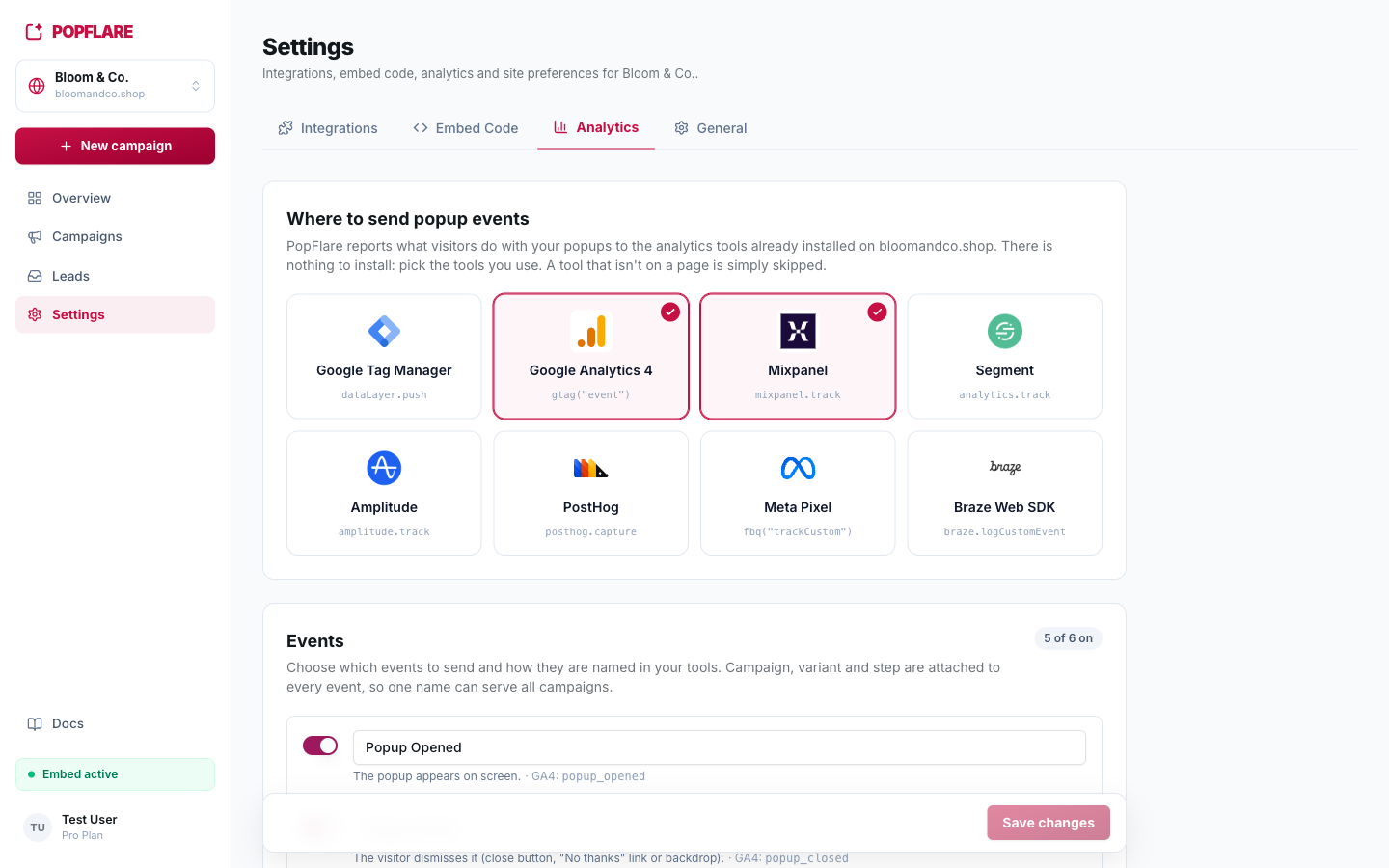
Your site already loads its analytics tools. When something happens in a popup, PopFlare calls the tool that is
on the page, for example mixpanel.track("Popup Opened", …), with the campaign, the variant and the
step as properties. The code that calls each tool is written and maintained by PopFlare: you only choose the
tools and the event names.
- Nothing to install. If a tool isn't on a page, it is simply skipped.
- Safe for your site. A missing, slow or broken tool never affects the popup or the page. A tool that loads a few seconds after the popup still receives the events.
- Privacy first. The email and anything else the visitor types are never sent to these tools, and page addresses are sent without their query string (also to GA4 and Segment, which would otherwise add the full address themselves). Leads go to your CRM through integrations instead.
1. Choose where to send events
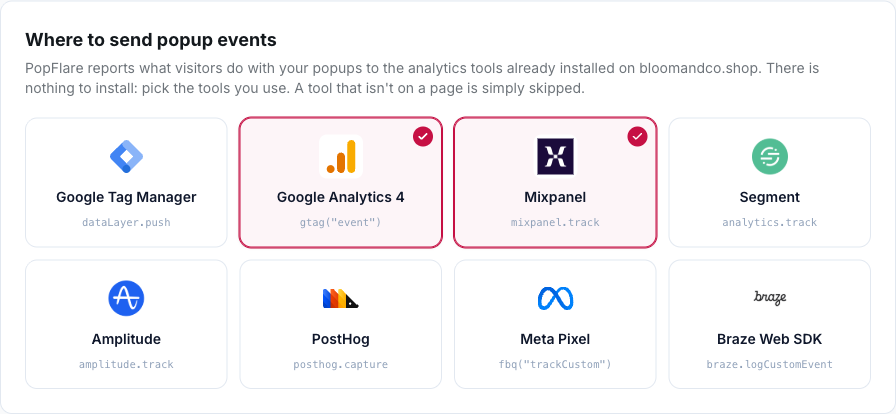
Open Settings → Analytics (owners and admins) and select the tools you use:
| Tool | What PopFlare calls | Good to know |
|---|---|---|
| Google Tag Manager | dataLayer.push({ event, … }) | The most flexible option: forward events anywhere with GTM tags. Events are never lost, even before GTM loads. |
| Google Analytics 4 | gtag('event', …) | Names are converted to GA4's format automatically (Popup Opened → popup_opened). See GA4 setup. |
| Mixpanel | mixpanel.track(…) | Properties are available in every report with no setup. |
| Segment | analytics.track(…) | One connection that forwards to any tool Segment supports. |
| Amplitude | amplitude.track(…) | Works with the current and the legacy browser SDK. |
| PostHog | posthog.capture(…) | |
| Meta Pixel | fbq('trackCustom', …) | Useful for retargeting visitors who saw or closed a popup. |
| Braze Web SDK | braze.logCustomEvent(…) | Records behaviour on the Braze profile, even for visitors who don't sign up. |
Heads up
If Google Analytics is loaded through Tag Manager, select only Google Tag Manager, or every event will be counted twice in GA4.
2. Choose events and names
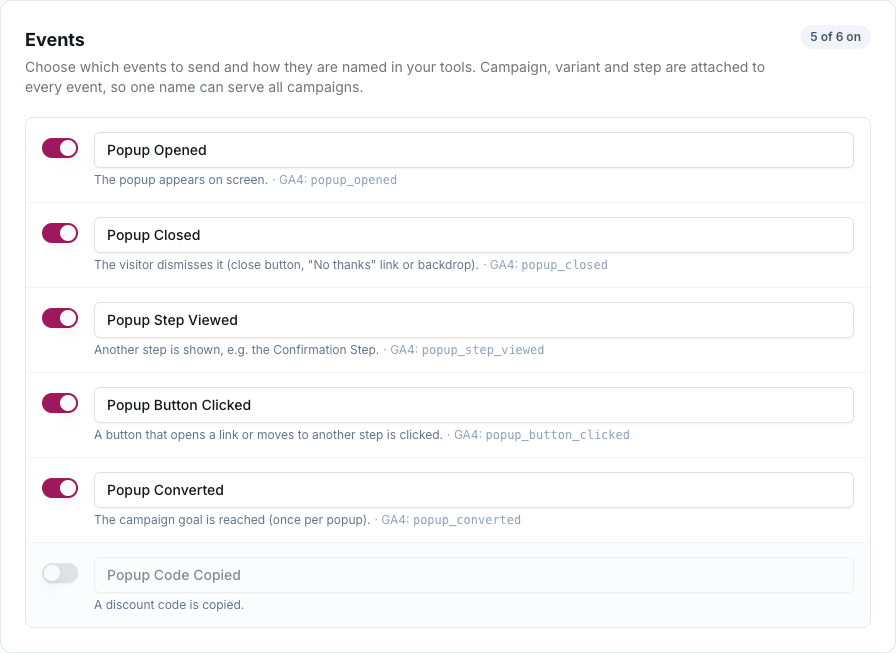
Turn each event on or off and give it the name you want to see in your tools:
| Event | Default name | Sent when |
|---|---|---|
| Opened | Popup Opened | the popup appears |
| Closed | Popup Closed | the visitor dismisses it; close_method says how (button, backdrop, timer, auto) |
| Step viewed | Popup Step Viewed | another step is shown, e.g. the Confirmation Step |
| Button clicked | Popup Button Clicked | a button opens a link or moves to another step |
| Converted | Popup Converted | the campaign goal is reached, once per popup |
| Code copied | Popup Code Copied | a discount code is copied |
Use one name for all campaigns and filter by the campaign_name or variant_tag
property: reports stay comparable and tools don't fill up with near-duplicate events. If you need separate
events, names accept placeholders, e.g. Popup Opened – {{campaign.slug}}.
3. Properties
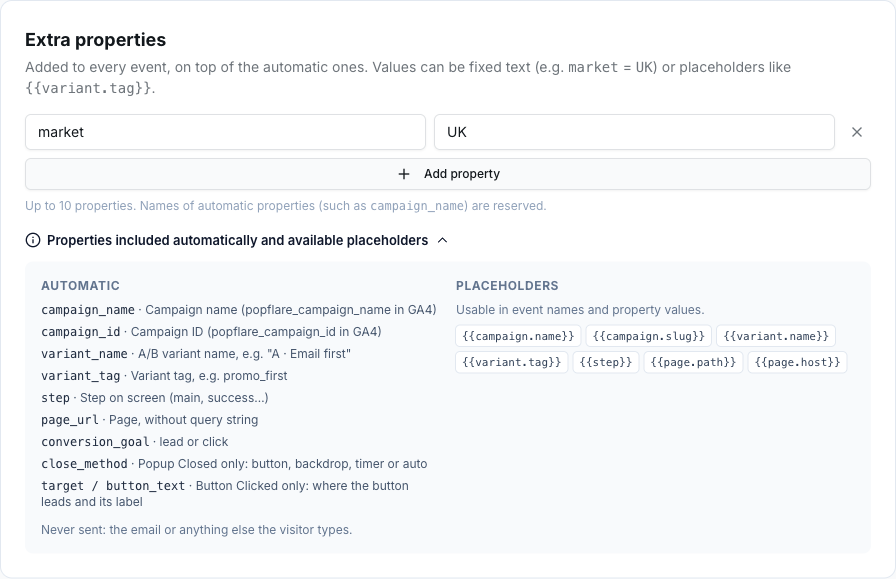
Every event carries these properties automatically:
| Property | Value |
|---|---|
campaign_name, campaign_id | the campaign. In GA4 they are sent as popflare_campaign_name and popflare_campaign_id, because GA4 reserves the original names for ad-campaign attribution |
variant_name, variant_tag, variant_id | the A/B variant, e.g. A · Email first / promo_first |
step | the step on screen: main, success… |
page_url | the page, without query string |
conversion_goal | lead or click |
popflare_event | the event type (open, close…), whatever name you chose |
Add your own under Extra properties, with fixed values (market = UK) or placeholders:
{{campaign.name}}, {{campaign.slug}}, {{variant.name}},
{{variant.tag}}, {{step}}, {{page.path}}, {{page.host}}.
Up to 10 properties; names use letters, digits and underscores, and the names of automatic properties (plus a few
reserved by the tools, such as event or page_location) can't be reused.
4. Per campaign
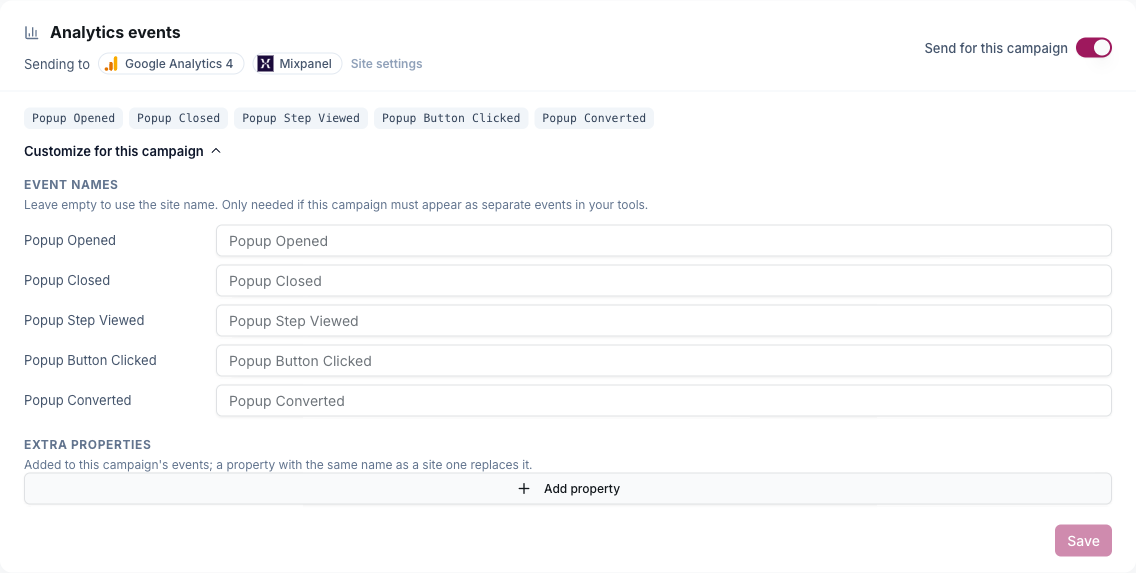
Campaigns use the site settings automatically. On the campaign page, the Analytics events card shows where events go, with a switch to stop sending events for that campaign only (for example a test campaign).

Customize for this campaign lets you rename events or add properties for that campaign only. Leave a name empty to keep the site's.
Check that it works
Open any page of your site with ?pf_debug=1 at the end of the address and open the browser console (right click → Inspect → Console):
https://www.example.com/some-page/?pf_debug=1

[PopFlare analytics] sent to mixpanel Popup Opened {campaign_name: "Newsletter", variant_tag: "promo_first", step: "main", …}
[PopFlare analytics] sent to ga4 popup_opened {campaign_name: "Newsletter", …}
[PopFlare analytics] segment is not on this page, skipped Popup Closed
Without ?pf_debug=1 nothing is written to the console.
Google Tag Manager setup
- In GTM, create a trigger of type Custom Event with the event name, e.g.
Popup Converted(or use a regex such as^Popupto catch them all). - Create Data Layer Variables for the properties you need:
campaign_name,variant_tag,step… - Add a tag for your tool (GA4 event, Mixpanel, a pixel…) that fires on that trigger and passes the variables.
- Preview with GTM's Tag Assistant, then publish.
Google Analytics 4 setup
GA4 receives events straight away, but its standard reports only show properties registered as
custom dimensions. Once, in GA4: Admin → Custom definitions → Create custom dimension,
scope Event, and add popflare_campaign_name, variant_tag and step (plus
any extra property you want to report on). New dimensions apply to events received from then on.
Mixpanel
No setup: once Mixpanel is selected, events appear in Events within seconds. Use
Breakdown by variant_tag to compare A/B variants, or build a funnel
Popup Opened → Popup Converted.